


AR Drawing: Trace & Sketch
4.18.00 Reviews
App Specs
- Version
- 0.2.3
- Updated On
- License
- Free
- Downloads
- 100,000+
- Developer
- TOMODEV JSC
- Categories
- Art & Design
- Platform
- Android
Screenshots
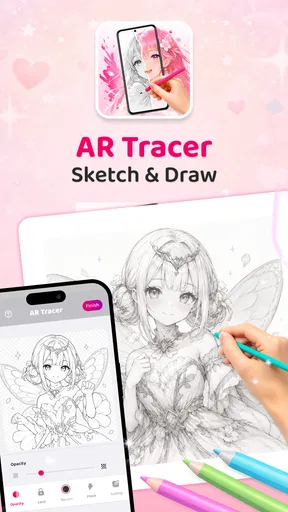
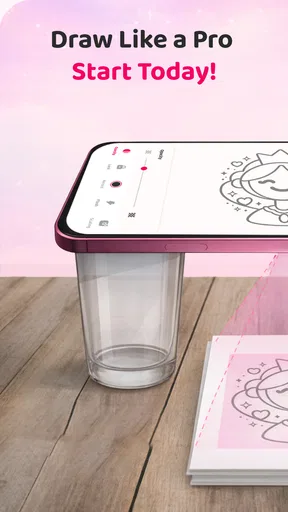
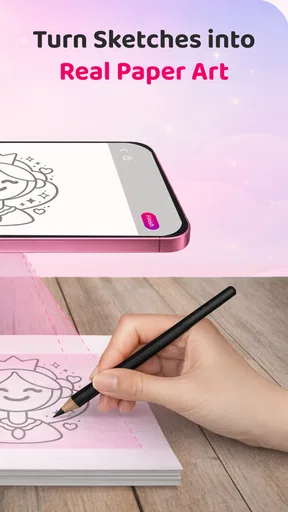
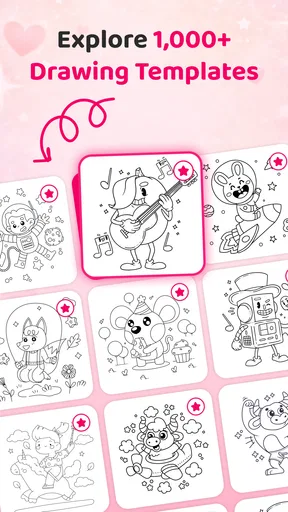
 Analysis by AppCompare
I like drawing apps most when they make it easier to begin, rather than promising to do the drawing for me. AR Drawing: Trace & Sketch takes that practical route: it uses your phone’s camera to place a guide over a real surface, giving you a reference to follow with pencil or pen. That can take some of the intimidation out of a blank sheet, especially if you are still learning how to judge proportions.
It is an art and design app from TOMODEV JSC, and its central idea is easy to understand even if you have never tried augmented-reality drawing. The app is free to install, with optional in-app purchases ranging from $2.99 to $7.99 per item. Its Everyone age rating makes it approachable for a family setting, though younger artists may still need help positioning a phone safely above their paper.
When the connection matters
There are two different parts to consider: the drawing itself and the material you use to get started. Choosing an image or exploring app content may involve a network connection, while the camera-based tracing experience depends on the phone and the space around it. I would prepare the image before settling in to draw, rather than assume every step will behave the same way with a weak signal.
That distinction is useful at home, in a classroom, or on a trip. If you plan to draw somewhere with unreliable service, open the app and make your choices while connected, then check that the image and camera view are ready before putting your phone in position. I would not count on a particular offline workflow without testing it on my own device.
A good fit for short, hands-on sessions
The camera overlay is best suited to a stable, well-lit setup: a sheet of paper on a desk, a phone held or propped above it, and enough room to move your drawing hand without nudging the device. It is less convenient on a crowded café table or while travelling, where the phone may shift and the surface may be too small. A stand or a secure improvised support can make the experience much less fussy, but keeping the camera view aligned still takes attention.
For a realistic everyday use, I can imagine opening it after dinner to sketch a simple animal or a gift-card illustration. I would choose the reference first, tape the paper down, and make a few light guide marks before committing to darker lines. That small bit of preparation matters: a projected guide can help with placement, but it cannot stop paper from sliding or choose which details are worth drawing.
Getting Started with AR Drawing
First things first, let’s talk about how easy it is to dive into AR Drawing: Trace & Sketch. Once you’ve got the app installed, you’re greeted with a user-friendly interface that doesn’t overwhelm you with too many options. It’s all about getting you started on your artistic journey.
Worth Reading Before You Choose

EA SPORTS FC Mobile 26 Is a Bigger Football Game, but It Takes Time

Flipboard Shows What News Apps Must Do Beyond the Feed

Switching to Android Auto Means Rethinking Your Driving Routine

Google Calendar Makes a Crowded Week Easier to Manage

Ludo King Makes the Most of the Minutes Between Plans

Baby Panda World Brings Quick Play to Modern Phones, but Its Game Library Feels Busy
The setup is pretty straightforward. You simply select the image you want to trace from a wide variety of options available within the app. Whether you’re into landscapes, portraits, or abstract designs, there’s something for everyone. And if you’re feeling a bit more adventurous, you can even upload your own images to sketch!
The Magic of Augmented Reality
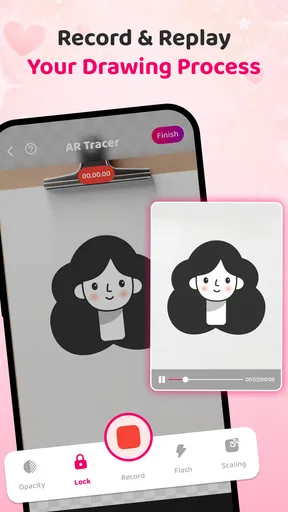
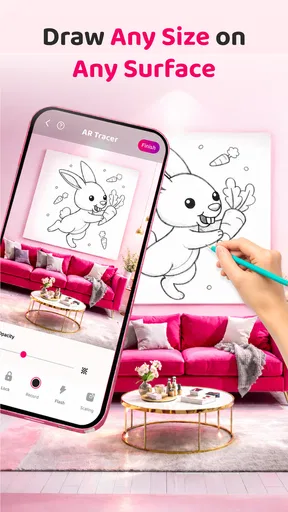
Now, here’s where the magic happens. The app makes use of augmented reality (AR) to project your chosen image onto a real-world surface, like a piece of paper. You’ll need to point your phone’s camera at the paper, and voila, the image appears right there, ready for you to trace.
It’s almost like having a digital stencil that overlays your work surface. This makes it incredibly easy to get the proportions and details just right. Trust me, it’s a game-changer, especially if you’ve struggled with freehand drawing in the past.
Working with the tools, not just the outline
The original guide describes brush-size choices, color palettes, hints and tips, and an undo control. I would treat those as support for the paper drawing rather than a substitute for physical materials: decide whether you are working in pencil, marker, or another medium before you begin, because the on-screen palette does not itself put color onto the page. A light first pass is especially useful when you are tracing a reference you may want to adjust by hand.
One practical trade-off is that tracing can make a drawing look more accurate before it makes the artist more confident. To get more learning value, try tracing only the outside shape on one attempt, then look away from the overlay and add a few details from observation. On another session, use the reference to check the spacing between features rather than following every line. Those small changes help turn a guide into practice instead of making every result depend on the projected image.
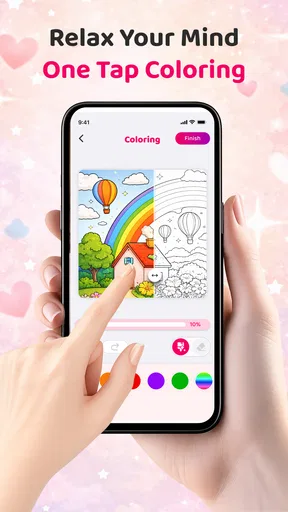
What I love about AR Drawing is the variety of tools it offers to enhance your drawing experience. You’ve got everything from different brush sizes to color palettes, allowing you to customize your art to your heart’s content. The app also provides helpful hints and tips along the way, making it suitable for both beginners and seasoned artists.
And let’s not forget the undo button – a true lifesaver for those little mishaps! It’s all about making the process as smooth and enjoyable as possible.
Staying steady when the setup slips
Camera-based tracing has a physical weak point: the phone needs to keep looking at the same patch of paper. If the image drifts, I would pause, reposition the device, and check the alignment before continuing rather than trying to compensate with increasingly awkward strokes. A stable support and paper that stays put are more useful than rushing to finish a line. If the app stops responding or a chosen image does not appear, returning to the selection step and reopening the camera view is a sensible first recovery attempt; I would avoid assuming that a drawing has been saved until I can see it is still there.
This is also where it differs from common alternatives. A traditional drawing tutorial gives you steps and leaves the page unobstructed, which is better when you want to learn construction or work at a large scale. A tracing sheet or lightbox can hold a reference without tying the process to a live camera view, while a standard sketching app is more suitable for drawing directly on a screen with digital brushes and layers. AR Drawing’s advantage is the bridge between a screen reference and marks made on real paper; the trade-off is needing a workable camera angle and a steady surface.
Learning, sharing, and choosing the right tool
One of the standout features of AR Drawing: Trace & Sketch is its educational aspect. The app isn’t just about tracing; it’s about learning. As you work through different projects, you’re picking up techniques and skills that you can apply to your own unique creations.
The app’s community feature is also worth mentioning. You can share your work with other users, get feedback, and even participate in challenges. It’s a fantastic way to stay motivated and see how others are using the app to improve their skills.
For a beginner who wants a visible starting point, or a parent looking for a low-pressure creative activity, the guided overlay can make the first attempt feel manageable. It can also help someone plan a handmade card or practise a shape before drawing it independently. I would skip it if I wanted a full digital illustration workspace, a camera-free lesson, or a method that works comfortably without arranging a phone above the page. Experienced artists may enjoy it for quick studies, but it is not a replacement for reference drawing, perspective exercises, or a dedicated digital canvas.
Sharing and challenges are most useful when they add motivation, not when they distract from the drawing. If you are mindful of data use, you can keep a session focused on choosing a reference and practising on paper, and leave community browsing or sharing for when you have a connection you are comfortable using. I would also be selective about what I share: a finished sketch is one thing, while a photo that includes personal details in the background is another. The app’s creative value does not require turning every practice page into a public post.
Who will enjoy it—and what to expect
In day-to-day use, the main question is not whether tracing is “real” drawing; it is whether a visual guide helps you practise a skill you care about. If you want to get a feel for outlines, spacing, and steady hand movement, it can be a friendly starting point. If your goal is to draw from imagination, use the overlay briefly and then repeat the same subject without it. That gives you a practical way to notice what you have learned instead of judging yourself only by how closely you copied the reference.
The app has a 4.1 average from around 447 ratings, with 100K+ installs, and its current version is 0.2.3. It is listed as released on February 24, 2026, and requires Android 8.0 or later. Those details make it easy to check whether it fits your device and whether its general reception seems worth exploring, but they do not guarantee that every phone camera or drawing setup will feel equally convenient. Since it is free to start and includes optional purchases, I would try the basic workflow first and decide whether any paid item is useful to my own routine before spending.
My final take on the drawing experience
In a nutshell, AR Drawing: Trace & Sketch is a brilliant app for anyone looking to improve their drawing skills or simply have fun with art. Its intuitive interface, combined with the power of augmented reality, makes it a must-try for artists of all levels.
Whether you’re doodling for relaxation or aiming to create a frame-worthy piece, this app is like having a friendly art tutor guiding you along the way. So grab your phone, pick a picture, and let your creativity flow. Who knows, you might just surprise yourself with what you can create!
My recommendation is to treat it as a hands-on tracing aid, not an automatic art lesson. Put the phone somewhere secure, use light marks, and occasionally finish a section without looking at the overlay. That approach makes the app’s strongest idea—the connection between a digital guide and a real sheet of paper—more useful, while keeping the drawing yours.
Pros
- Easy to use interface for beginners.
- Wide variety of stencils available.
- Supports multiple drawing tools.
- Offers a step-by-step guide.
- No need for advanced drawing skills.
Cons
- Requires a stable hand for accuracy.
- Limited free content availability.
- Ads can be intrusive at times.
- Requires a well-lit environment.
- May drain battery quickly.
FAQs for AR Drawing: Trace & Sketch
What is AR Drawing: Trace & Sketch and how does it work?
AR Drawing: Trace & Sketch is an innovative app that utilizes augmented reality technology to help you draw by projecting images onto a surface. Simply select an image, point your device’s camera toward your drawing surface, and trace the projected image. This app is perfect for artists of all skill levels who want to improve their drawing techniques.
Is AR Drawing: Trace & Sketch suitable for beginners?
Yes, AR Drawing: Trace & Sketch is designed to be user-friendly and accessible for beginners. The app provides step-by-step guidance and a variety of templates that make it easy for newcomers to learn and practice drawing. Additionally, users can adjust the difficulty level to match their skill and comfort.
What devices are compatible with AR Drawing: Trace & Sketch?
AR Drawing: Trace & Sketch is compatible with most modern Android and iOS devices that support AR technology. It requires a camera and the necessary AR software capabilities to function properly. Check the app’s page on the Google Play Store or the Apple App Store for specific device requirements and compatibility.
Are there any in-app purchases or subscriptions required?
While AR Drawing: Trace & Sketch offers a free version with basic features, it also includes optional in-app purchases and subscriptions. These may provide access to additional templates, tools, and advanced features. Users can choose to upgrade for a more enhanced experience, but it’s not mandatory to enjoy the core functionalities of the app.
How can I troubleshoot if the app isn’t working properly?
If AR Drawing: Trace & Sketch isn’t functioning as expected, try restarting your device and ensuring it meets the app’s compatibility requirements. Check for any available updates for both your device’s software and the app itself. If issues persist, consider reaching out to the app’s support team through the contact information provided on the app’s store page.


